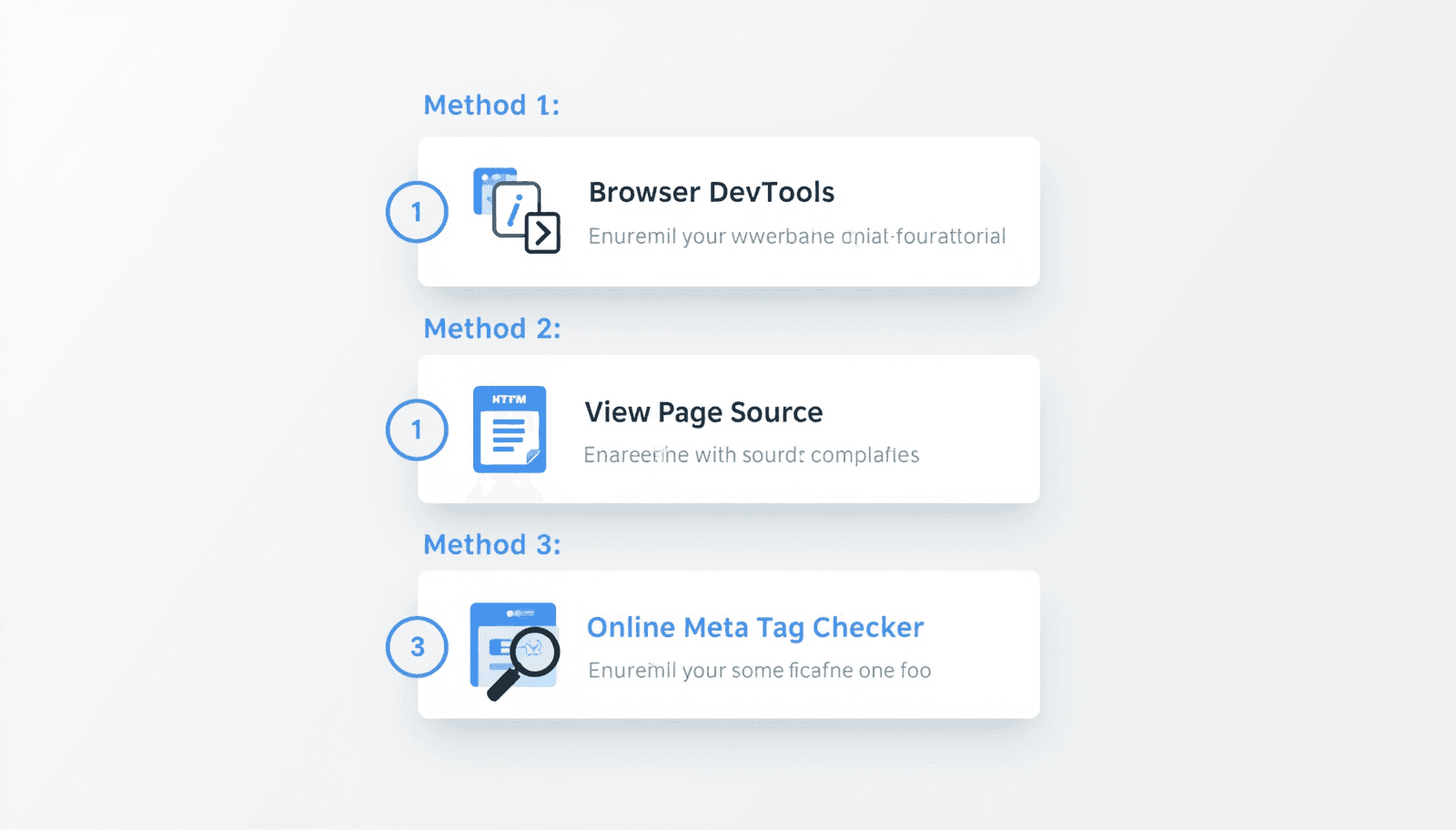
Meta tags live in the <head> section of every webpage — invisible when you load the page normally, but read by every search engine and social platform that touches that URL. If you want to see what a page's title tag, meta description, canonical, or Open Graph tags actually say, you have three options: dig through the browser's developer tools, view the raw page source, or use a tool that extracts everything in one pass.
This guide walks through all three methods, what to look for once you can see the tags, and when each approach makes sense. If you just want the fastest route, skip to Method 3 and use Prafero's free Meta Tag Analyzer — paste any URL and every meta tag appears instantly with no signup required.
Method 1: View Page Source
This is the most direct way to see a page's raw HTML, including every meta tag, exactly as it was sent from the server before any JavaScript runs.
Steps:
Open the page you want to check in any browser.
Right-click anywhere on the page that is not an image or a link.
Select "View Page Source" (Chrome, Edge, Firefox) — this opens the raw HTML in a new tab.
Press Ctrl+F (Windows) or Cmd+F (Mac) to open the in-page search bar.
Type <meta and press Enter to jump straight to every meta tag on the page.
Type <title to find the title tag, which sits separately from the meta tags but in the same <head> section.
What you'll see: A flat, unstyled block of HTML. Look near the top of the document for the <head>...</head> section — this is where the title tag, meta description, canonical tag, robots tag, and Open Graph tags all live.
The limitation: View Page Source shows the HTML exactly as the server sent it, before any JavaScript executes. If a site sets or modifies meta tags using client-side JavaScript — common on single-page applications and some React or Vue sites — those changes will not appear here. You will see the original, pre-JavaScript version of the tags.
Method 2: Inspect Element (Browser DevTools)
This method shows the page's HTML after JavaScript has run, which is closer to what a fully rendered browser sees — though not necessarily identical to what every search engine crawler sees.
Steps:
Right-click anywhere on the page and select "Inspect" (Chrome, Edge) or "Inspect Element" (Firefox, Safari). Alternatively, use the keyboard shortcut Ctrl+Shift+I on Windows or Cmd+Option+I on Mac.
This opens DevTools with the Elements tab active, showing the page's live DOM structure.
At the top of the Elements panel, find and expand the <head> tag by clicking the small arrow beside it.
Every <meta> tag, the <title> tag, and the <link rel="canonical"> tag will be listed as children of <head>.
To search instead of scrolling, click inside the Elements panel and press Ctrl+F (or Cmd+F on Mac) to open the DevTools search bar, then type meta name to jump directly to meta tags.
Why this method matters for JavaScript-heavy sites: Unlike View Page Source, Inspect Element shows the DOM after scripts have executed. If a site dynamically injects or rewrites meta tags with JavaScript, this method will catch it — View Page Source will not. This distinction matters because Google's crawler does render JavaScript before indexing in most cases, but rendering can be delayed, and not every crawler or social platform executes JavaScript at all. The safest practice for SEO is to have critical meta tags present in the initial server-rendered HTML, not added later by a script.
Method 3: Use a Free Meta Tag Checker Tool
Both manual methods work, but they require opening developer tools, knowing what to search for, and manually scanning through HTML. For checking your own pages regularly, auditing a competitor's setup, or working across many URLs, a dedicated tool extracts and organizes everything in seconds.
Steps using Prafero's Meta Tag Analyzer:
Paste the full URL, including https://, into the input field.
Click Scan. Prafero fetches the live page and extracts every meta tag automatically.
Review the results: title tag, meta description, canonical, robots directive, viewport, every Open Graph tag, and every Twitter Card tag — all displayed with character counts and pass/fail status, no manual searching required.
This approach has three advantages over the manual methods: it works on any URL without opening developer tools, it shows character counts and flags issues automatically, and it works equally well on competitor URLs you don't have backend access to.
What to Look For Once You Can See the Tags
Finding the tags is only step one. Here is what each one should contain and what a problem looks like.
Title tag — should be unique to the page, 50–60 characters, and contain the page's primary topic near the front. A missing title tag, or one shared identically across multiple pages, is a problem.
Meta description — should be 150–160 characters, unique per page, and written to encourage a click rather than just summarize content. A missing or duplicated description across pages is a common issue.
Canonical tag — should point to the preferred version of the URL, normally the page itself. A missing canonical, or one pointing to the wrong URL, can split ranking signals across duplicate versions of a page.
Robots meta tag — should read index, follow for any page you want in search results. According to Google's documentation on robots meta tags, a value of noindex excludes the page from search results entirely, regardless of how well optimized everything else is. This is worth checking on every important page, especially after a deploy or theme change.
Meta keywords tag — if present, it has no effect on Google rankings. Google stopped using this tag in 2009. If you want the full background on why it still appears on so many sites and what Bing does with it differently, see Meta Keywords: Does It Still Affect SEO in 2026?
Open Graph tags (og:title, og:description, og:image, og:url) — control how the page appears when shared on LinkedIn, Facebook, and WhatsApp. A missing og:image means every social share shows a blank or broken card. Use Prafero's Open Graph Checker to preview exactly how a URL renders as a share card on each platform.
Viewport tag — should be present for any page expecting mobile traffic. Its absence causes pages to render at desktop width on phones, which fails Google's mobile-first indexing expectations.
When to Use Each Method
Use View Page Source when you want to see exactly what the server sends, before any JavaScript modifies it — the closest approximation to what a crawler sees on first request.
Use Inspect Element when the site is JavaScript-heavy and you suspect meta tags are being set or changed client-side, and you want to see the fully rendered result.
Use a free tool when you are checking multiple pages, auditing a competitor's setup without backend access, or simply want a faster result with character counts and pass/fail flags already calculated — without opening developer tools at all.
For a deeper breakdown of every meta tag type, what it controls, and provider-specific setup guidance, see the Complete Meta Tags Guide 2026.